Tutorial#
This tutorial will walk you through the key steps of the burst curation graphic user interface (GUI).
GUI will automatically in dark/light mode based on user system settings.
Lanuching the program#
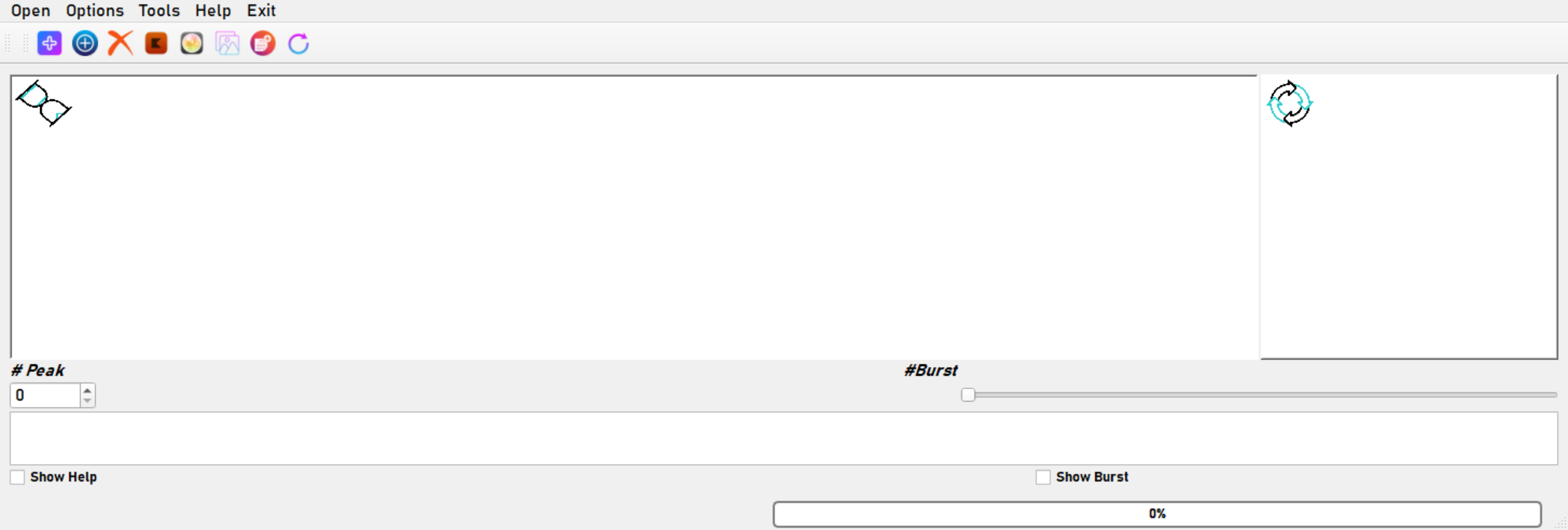
This is the start window of the GUI. The GUI is divided into three main parts: the menu bar, curation tools, and the main window. The menu bar contains the following menus: Open, Options, Tools, Help, and Exit. The curation tools contains the following buttons: Add Square labelled Peaks, Add Star labelled Peaks, Delete Peaks, Mark Burst, Show/Hide Marked, Save Figure (of marked burst), Add Burst (to curation list) and Cancel/Redo Current Burst.
Running built-in spike sorting and clustering#
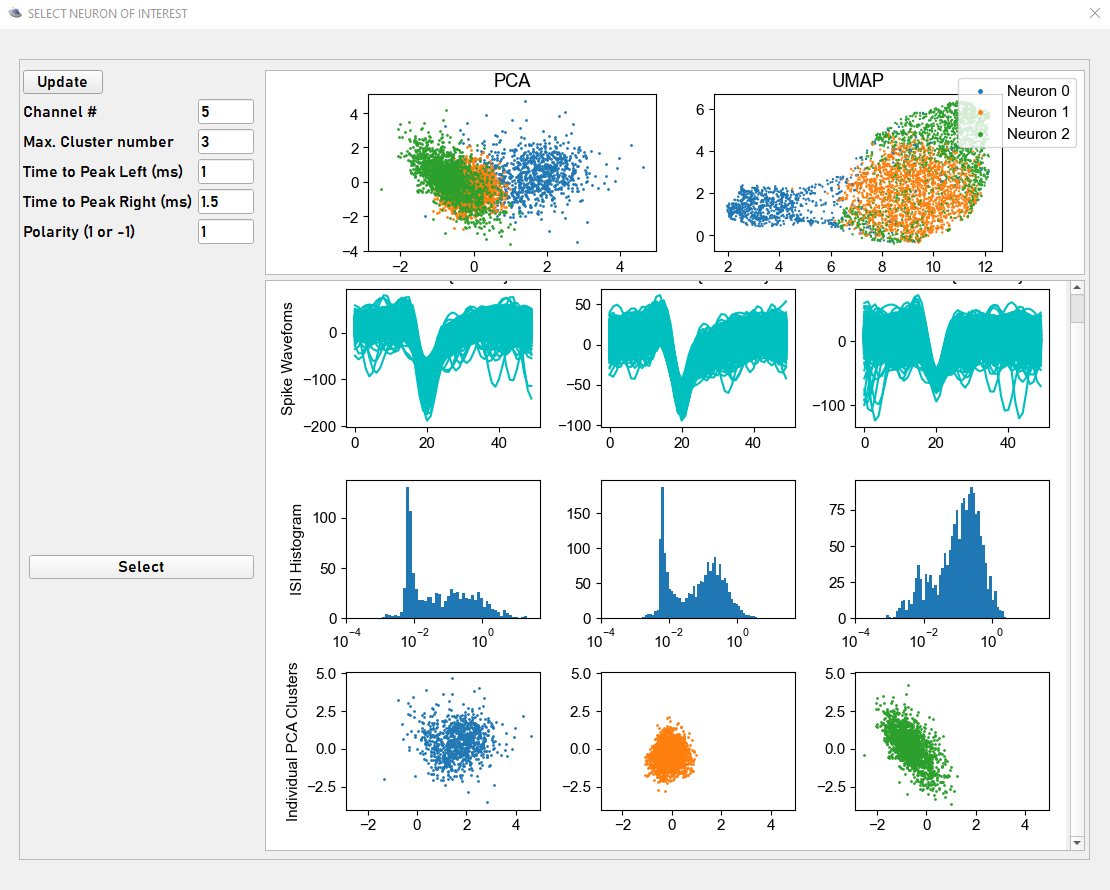
Key parameters including channel name (put 0 if it is single channel signal), time before and after spike peak to extract spike waveform (in ms) and polarity of spike are available for user to define or change by their own needs.
If user choose to open and load a unsorted data file, this window will pop up. Use Button Update to run built-in spike sorting and clustering on selected Channel.
Spatial projections of spike waveforms via principal components analysis (PCA) and Uniform Manifold Approximation and Projection (UMAP), and log-transformed inter-spike-interval (ISI) histogram of spikes will be displayed and updated in this sepearte window.
Note
User can close the dialog window once all the key parameters are set. This wokrs for any other dialog windows in the program.
Selecting a neuron of interest#
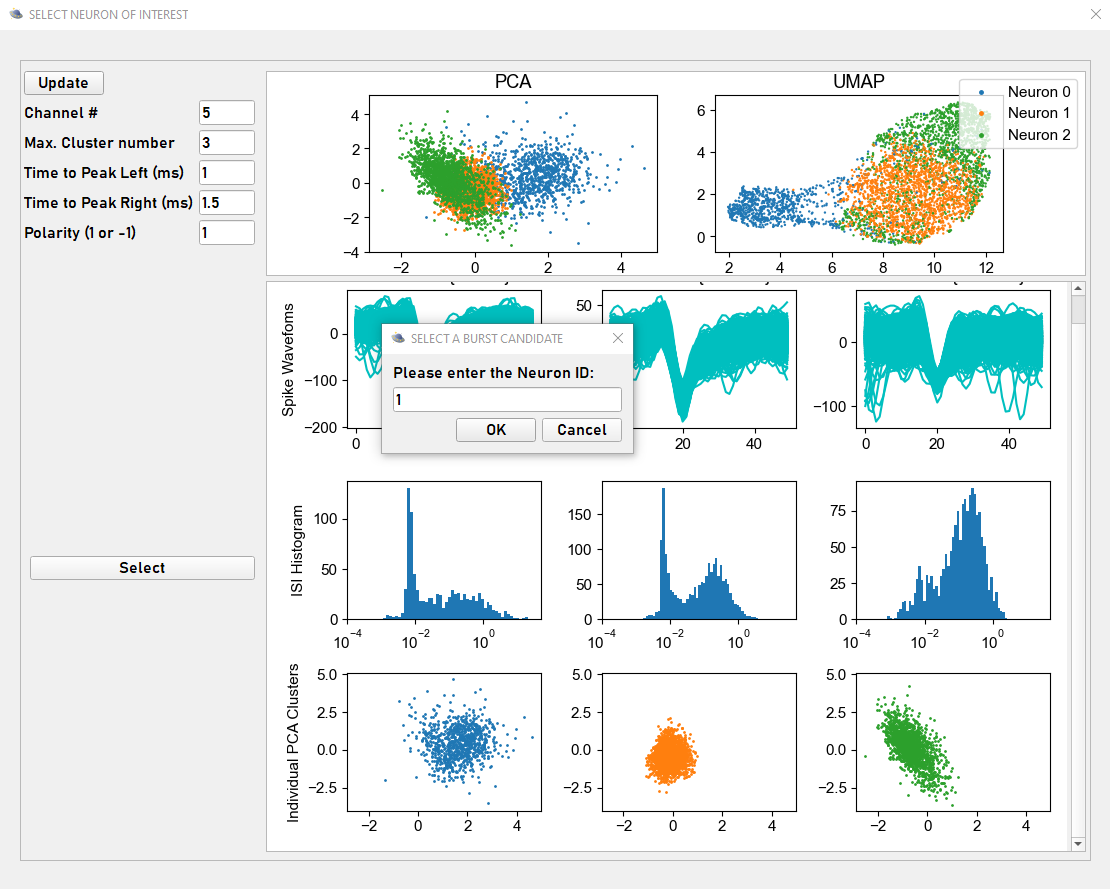
After visualization of the different aspects of the sorted spikes, user can click on button Select, and a new window will pop out for user to pick a neuron of interest. only one neuron can be selected at a time. User can close the dialog window once a neuron of interest is selected.
Note
More details is discussed in our paper.
Get Burst Cnadidates#
After a neuron of interest is selected, this message window will pop up after run Load Burst Candidates. User will see this window immediately if a sorted data file is loaded after run Load Burst Candidates.
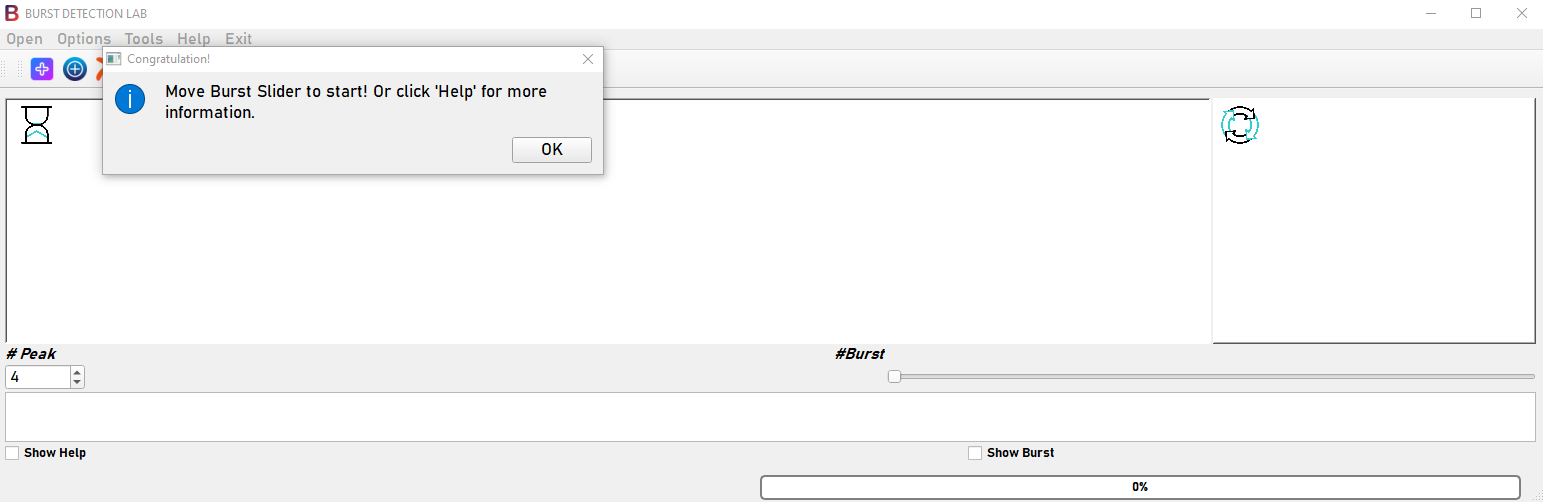
Click Options button on meum bar and select Load Burst Candidates to start.#
Warning
Warning messages will pop up if this step is not initiated, and the curation will not start.
Define Burst Detection Parameters#
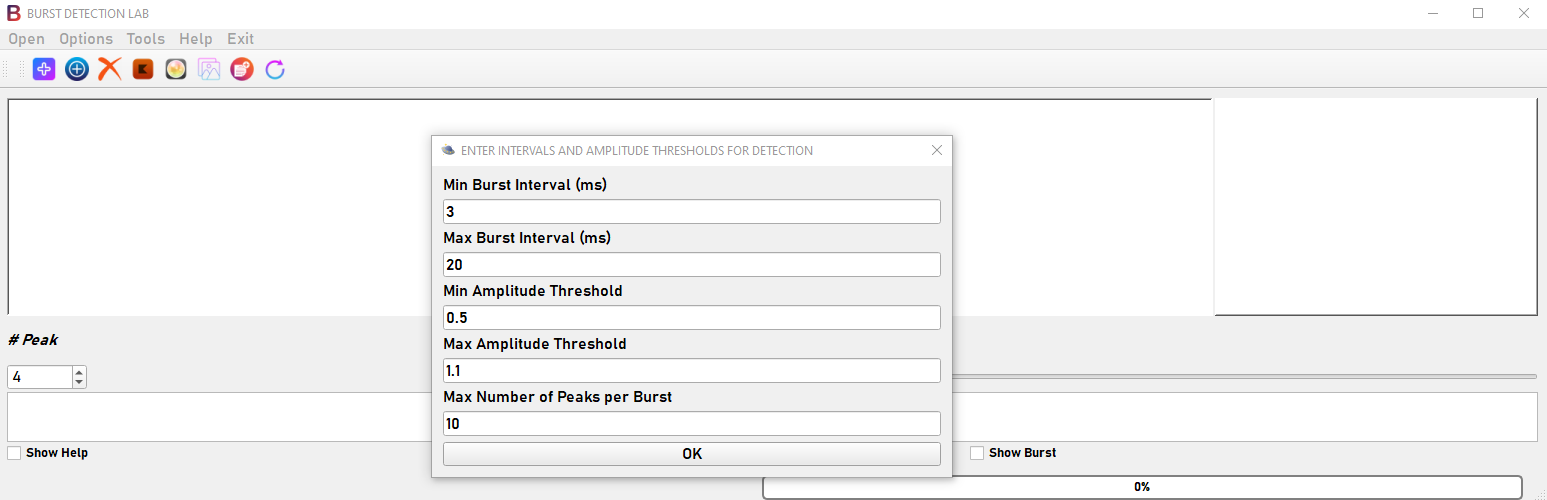
Key varibales are four: maximum and minimum time intervals of burst events (milliseconds, ms), maximum and minimum amplitude thresholds of successive spikes in a burst. Users can change the parameters according to their needs. Default parameters will be used if no inputs were received.
Note
More details is discussed in our paper.
Curation In Progress#
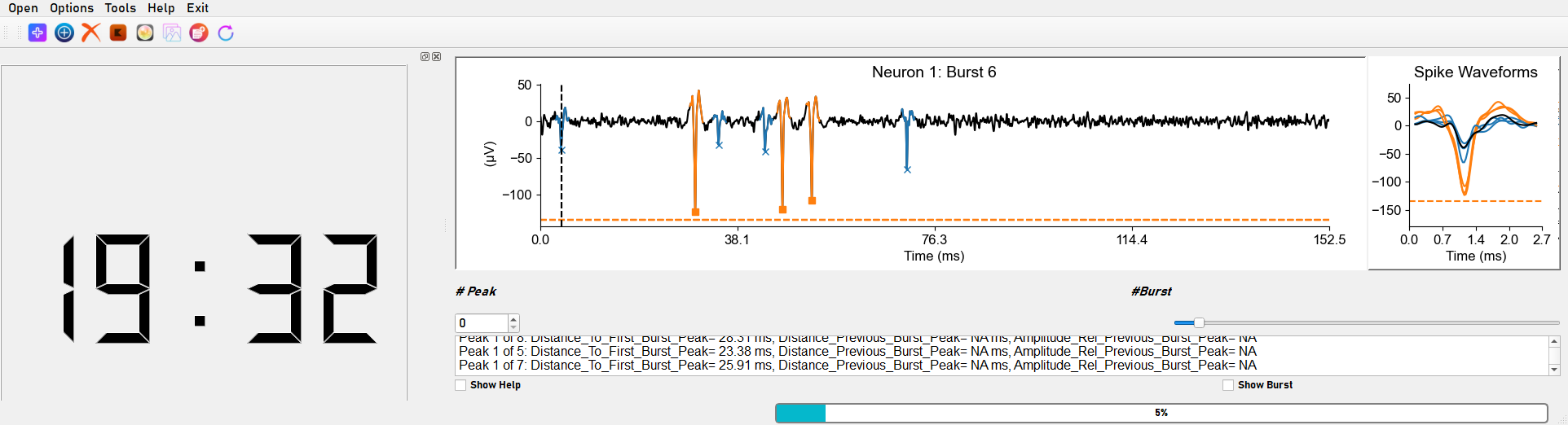
A filtered trace with a modifiable amount of time surrounding the first and last peaks of the burst event with any peaks color-coded according to their cluster designations assigned by spike sorting. The burst candidate window is displayed in a 2D plot, with the x-axis representing time (ms) and the y-axis representing Microvolt (µV). The black vertical dash line represents the currently selected spike peak. Waveform of the selected peak is dispalyed on the left side of the main window in color black also. User can scroll through each peak in the window and decide if that peak belongs in the burst event using either Peak ID spinbox or keyboard shortcuts (see Hotkey Index). Burst ID slider can be used to scroll through and preview all the detected burst events.#
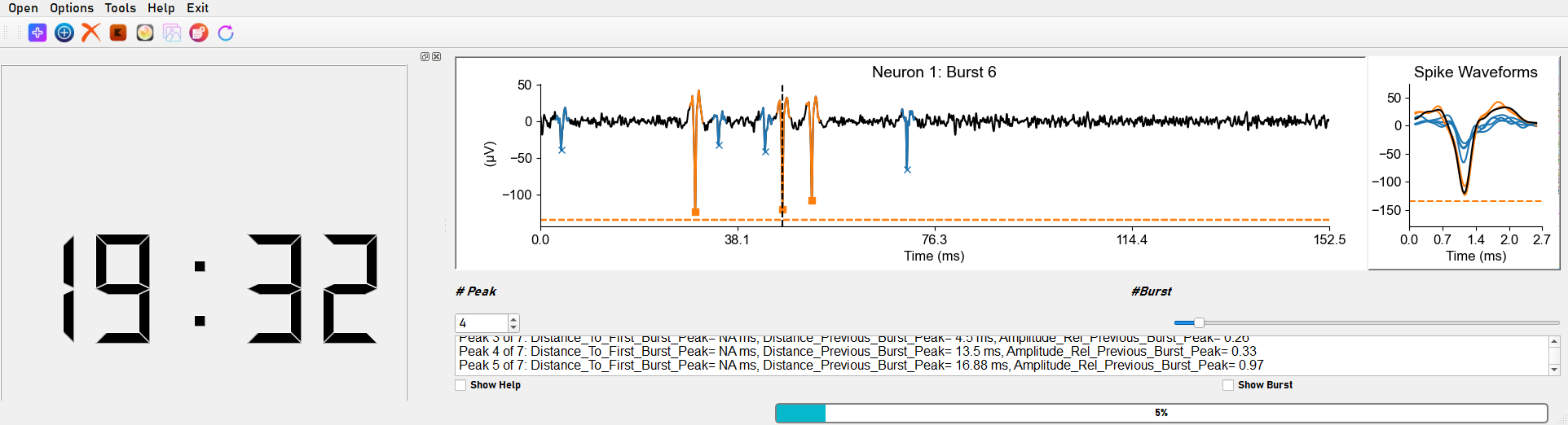
A information box below the main graphic window updates each selcted spike’s time and amplitude information in related to its nearby peaks. User can scroll up and down to go through all the information ever updated.#
Note
More details is discussed in our paper.
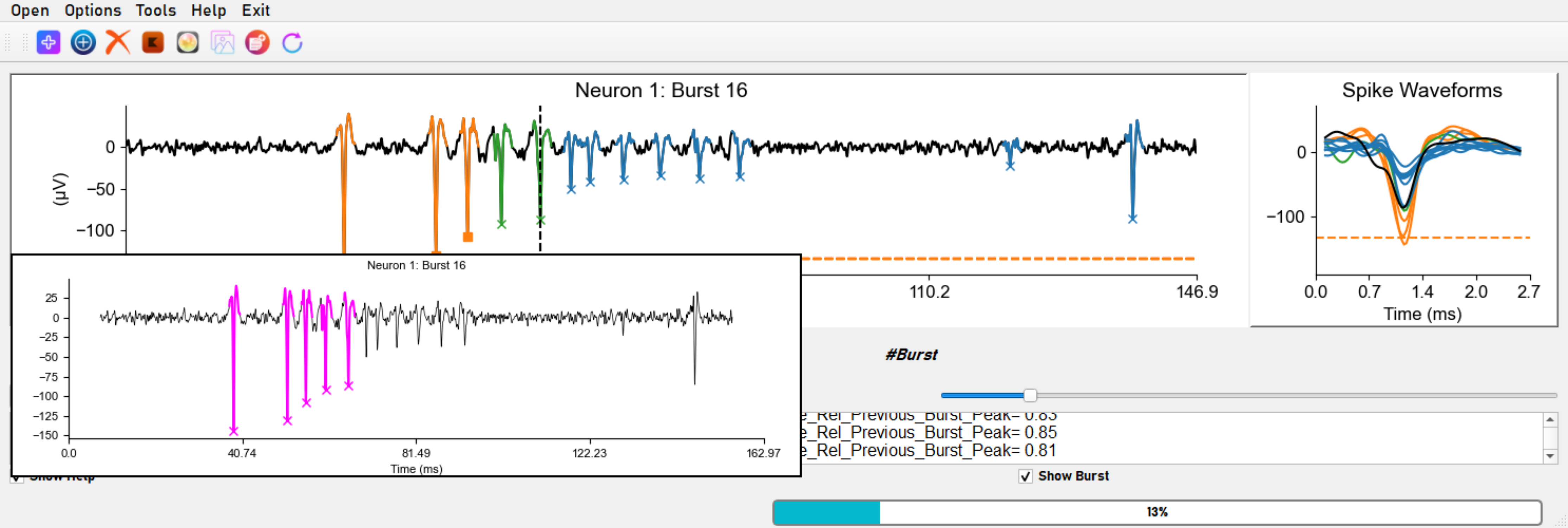
Click Mark Burst and then Show Curated Burst on toolbar, the marked burst will be displayed in a new window. User can toogle on and off the display by clicking Show Curated Burst button again.#
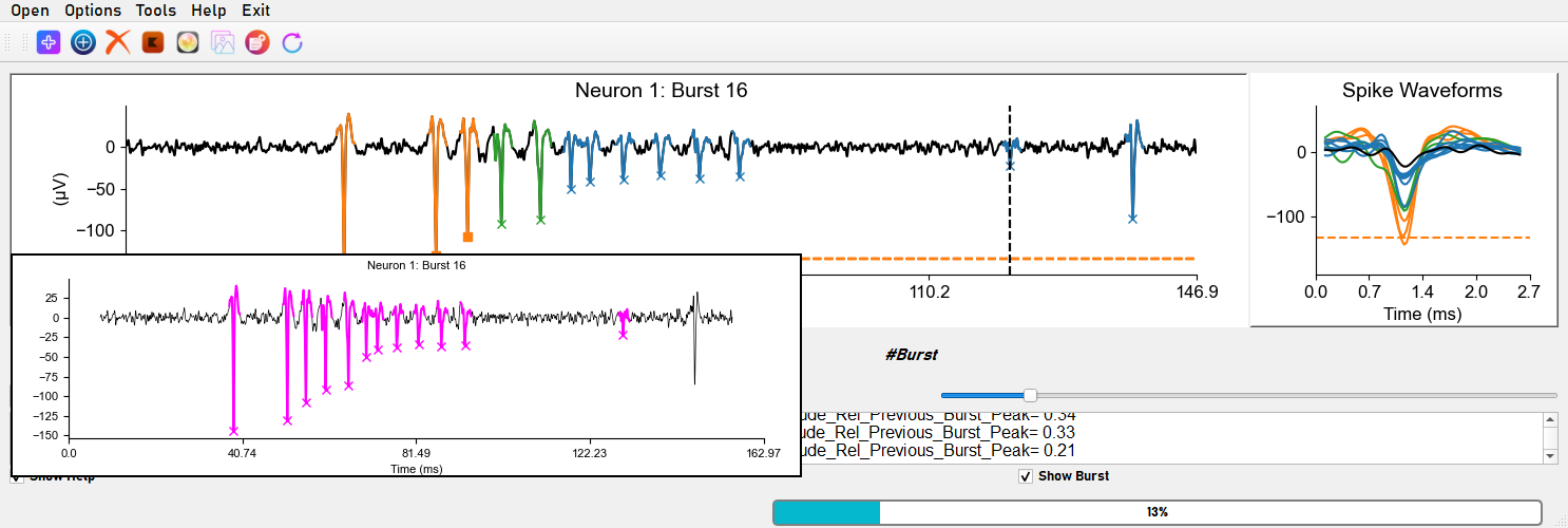
As long as current burst is not added to curated burst list, user can always add or remove any peaks and preview the burst by clicking Show Curated Burst button on toolbar.#
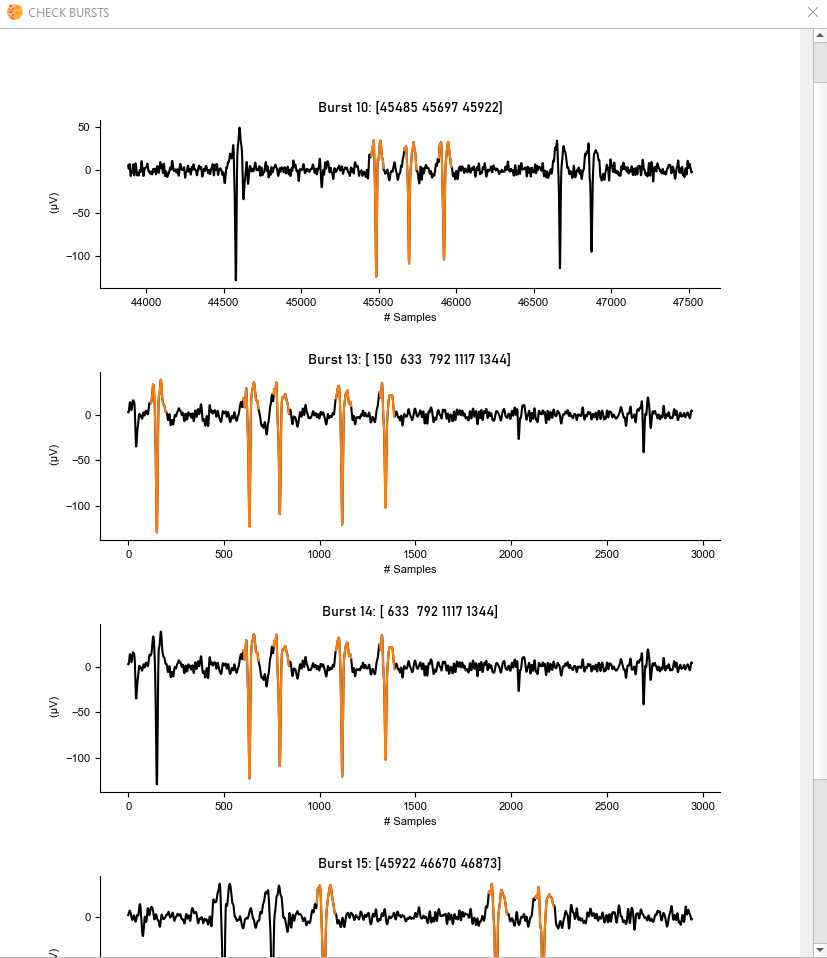
Click Options button on meum bar and select Check Bursts. All the curated bursts have duplicated indexes will be displayed in a separate window. User can scroll up and down to check these bursts and decide which ones to keep.#
Important
This will delete all the spikes in the selected burst user want to delete.
Don’t run this until one is done deciding the ones to delete.
After this step user can always go back and re-run and repeat.
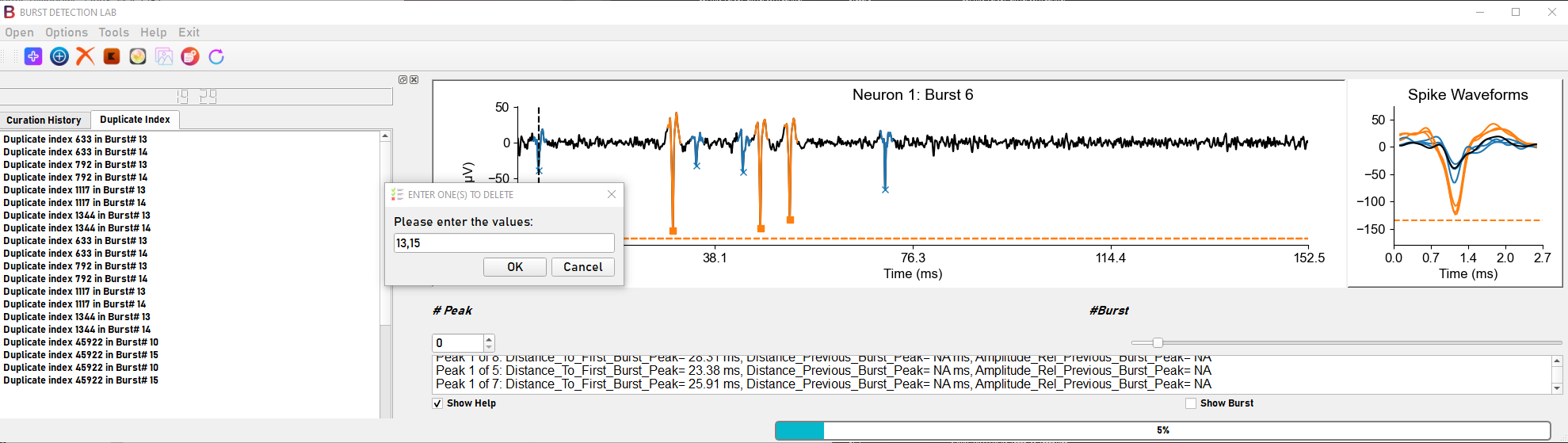
Click Options button on meum bar and select Delete Duplicates. A new window will pop up to ask user to put in burst ID numbers to delete based on pervious Check Bursts result.#
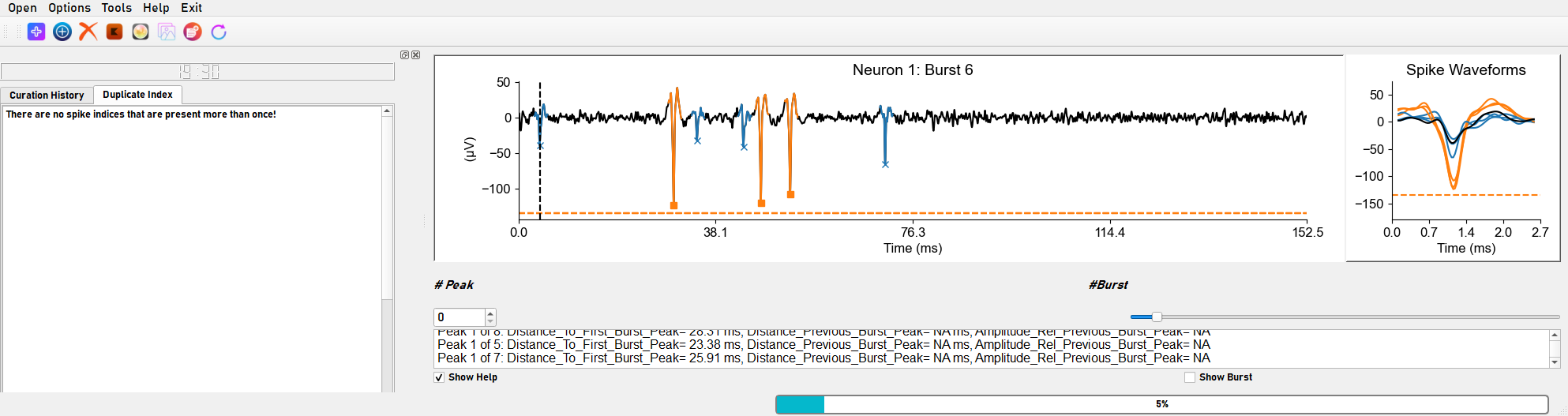
Congralutions, curation is almost done! If there is no duplicated bursts, panel Duplicate Index in curation assistant will change to status showing above.#
Click Options button on meum bar and select Reassign Cluster ID to proceede. Finally, click Options button on meum bar and select Save Bursts to save the curation results.
Using Help and Burst Curation Asistant#
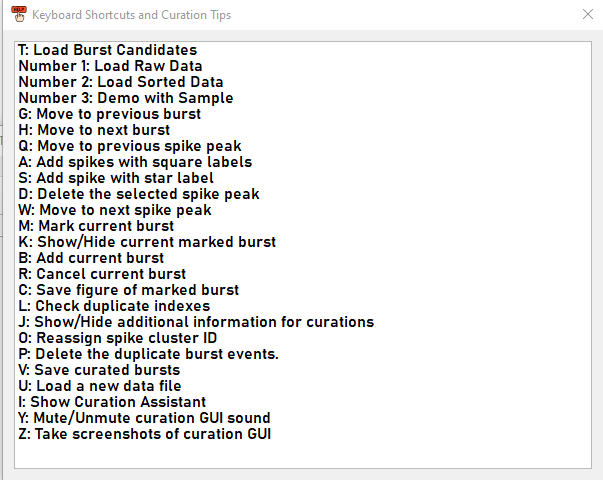
Simply click the Help button on meum bar to open the help window. This window provides a brief summary of the steps involved in burst curation. For more detailed instructions, please refer to our paper and the Hotkey Index.#
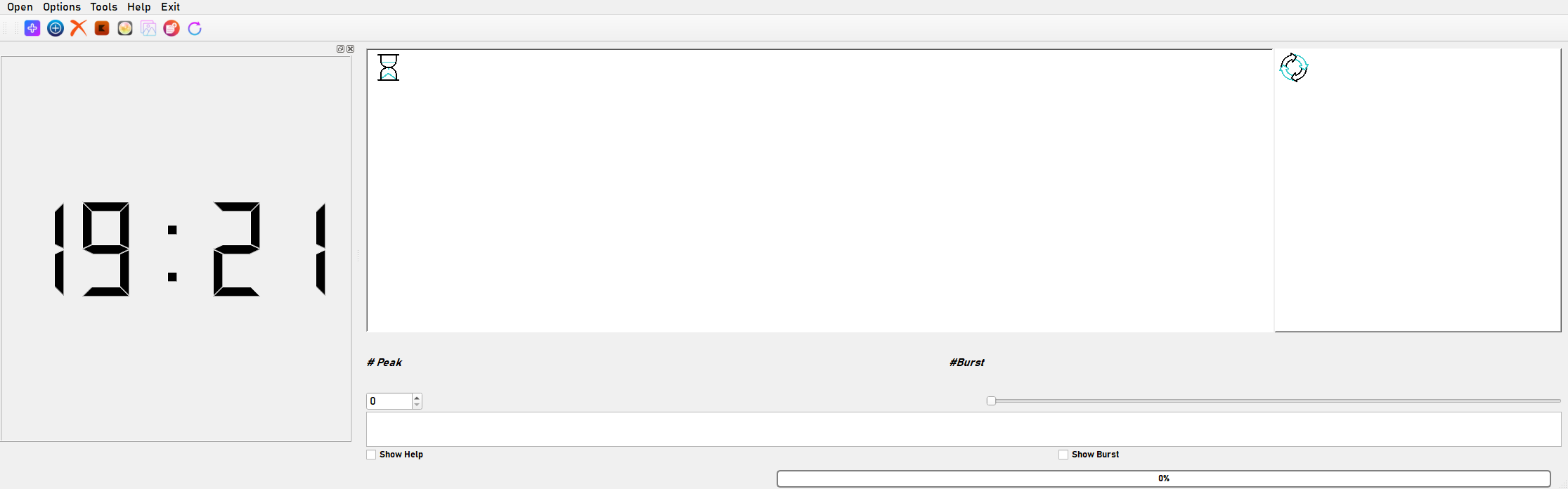
Click Options button on meum bar and select Show Curation Assistant to open the assistant window. Use keybaord command ‘J’ to toogle on and off ‘Curation History’ and ‘Duplicate Index’ tabs.#
Note
- A docking widget will be toggled to display/hide
A LCD timer
Curation History table
Duplicate Index information page
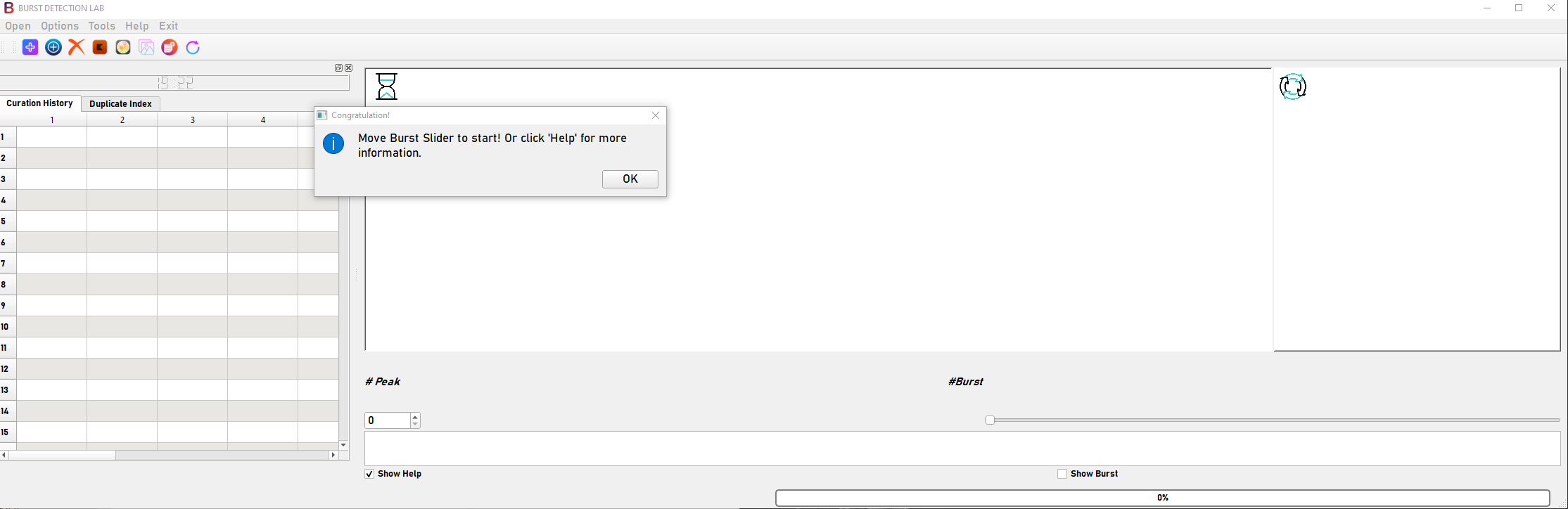
Table of curated bursts will be updated in real time. User can scroll up and down to check the list.#
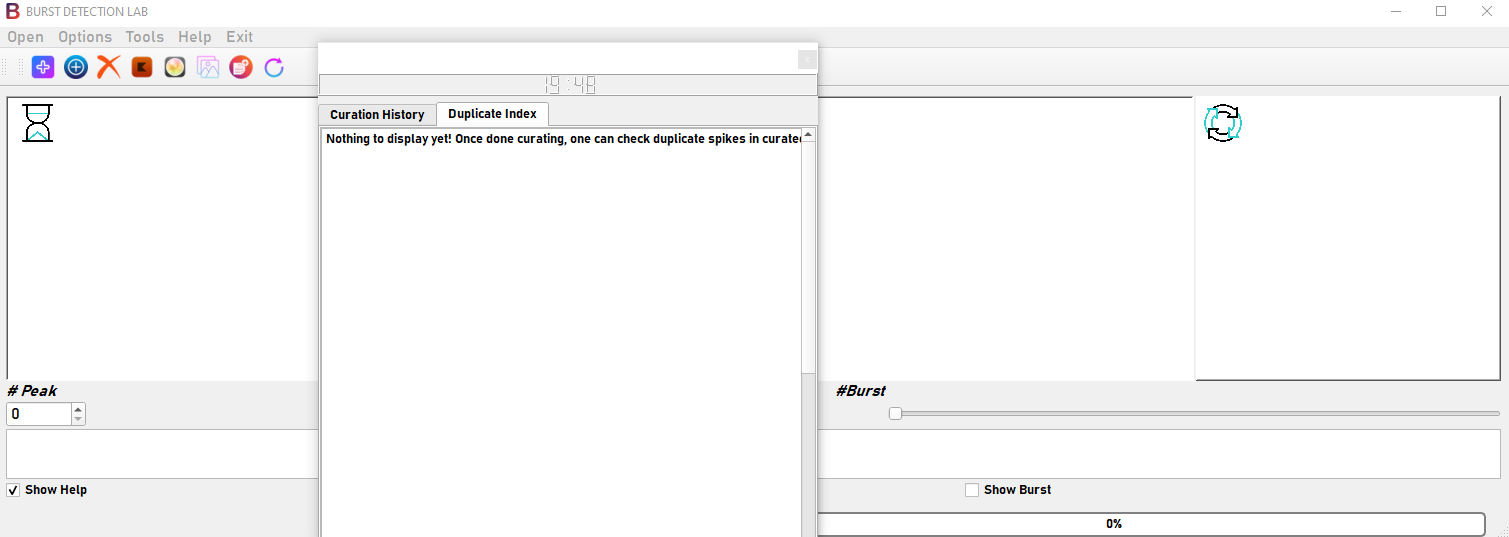
Latest update of detected duplicates will be displayed everytime user run Check Bursts.#
Further information#
please contact Effy Zhang.